Thursday, June 4, 2009

Revolution OS


Revolution OS Homepage

REVOLUTION OS tells the inside story of the hackers who rebelled against the proprietary software model and Microsoft to create GNU/Linux and the Open Source movement.

On June 1, 2001, Microsoft CEO Steve Ballmer said "Linux is a cancer that attaches itself in an intellectual property sense to everything it touches."

Microsoft fears GNU/Linux, and rightly so. GNU/Linux and the Open Source & Free Software movements arguably represent the greatest threat to Microsoft's way of life. Shot in cinemascope on 35mm film in Silicon Valley, REVOLUTION OS tracks down the key movers and shakers behind Linux, and finds out how and why Linux became such a potent threat.

REVOLUTION OS features interviews with Linus Torvalds, Richard Stallman, Bruce Perens, Eric Raymond, Brian Behlendorf, Michael Tiemann, Larry Augustin, Frank Hecker, and Rob Malda. To view the trailer or the first eight minutes go to the ifilm website for REVOLUTION OS.

Companies such as Hewlett-Packard, IBM, Oracle, Wipro, Ogilvy & Mather, OSTG, and Dreamworks Animation have rented REVOLUTON OS for private theatrical screenings. It has also screened in numerous film festivals including South By Southwest Film Festival, the Atlanta Film & Video Festival, Boston Film Festival, and Denver International Film Festival. REVOLUTION OS won Best Documentary at both the Savannah Film & Video Festival and the Kudzu Film Festival.

REVOLUTION OS is available in the 35 mm motion picture format and runs 85 minutes.

Source: http://www.revolution-os.com/

Activating Unicode/UTF-8 Support and Changing Default Locale Language in Slackware

For a list of locales which are supported by your Slackware box, type:

$ locale -a

If you have full installation of Slackware, all languages will be listed.

To get UTF-8 support, edit lang.sh file as root by:

# nano /etc/profile.d/lang.sh

Comment default locale and add uncommented line

export LANG=en_US.UTF-8


to lang.sh file as in below.

#!/bin/sh
# Set the system locale. (no, we don't have a menu for this ;-)
# For a list of locales which are supported by this machine, type:
# locale -a

# en_US is the Slackware default locale:
# export LANG=en_US

export LANG=en_US.UTF-8

# 'C' is the old Slackware (and UNIX) default, which is 127-bit
# ASCII with a charmap setting of ANSI_X3.4-1968. These days,
# it's better to use en_US or another modern $LANG setting to
# support extended character sets.
#export LANG=C

# There is also support for UTF-8 locales, but be aware that
# some programs are not yet able to handle UTF-8 and will fail to
# run properly. In those cases, you can set LANG=C before
# starting them. Still, I'd avoid UTF unless you actually need it.
#export LANG=en_US.UTF-8

# Another option for en_US:
#export LANG=en_US.ISO8859-1

# One side effect of the newer locales is that the sort order
# is no longer according to ASCII values, so the sort order will
# change in many places. Since this isn't usually expected and
# can break scripts, we'll stick with traditional ASCII sorting.
# If you'd prefer the sort algorithm that goes with your $LANG
# setting, comment this out.
export LC_COLLATE=C

# End of /etc/profile.d/lang.sh


After modifying lang.sh file, save it and reboot your computer.

To change your computer's locale language, replace "en_US" with your locale code "tr_TR, en_GB, en_CA, etc..." in lang.sh file and save, then reboot your computer.

Wednesday, June 3, 2009

Open Source Map


Open Source Activity Map | Open Source Environment Map

About this Map

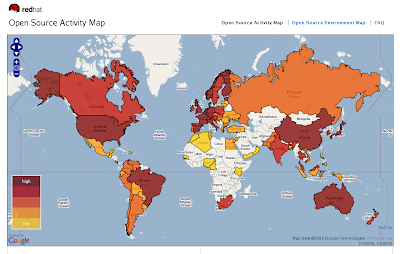
Explore open source software hotspots around the world through the interactive Open Source Index, or OSI, based on research by the Georgia Institute of Technology (Georgia Tech). The OSI is a measure of the open source activity and environment in 75 countries. Each country is given a score based on its policies, practices, and other data in the fields of Government, Industry, and Community.

Click on a country to see the country's rank (1 being the highest, 75 being the lowest) in open source activity. One map shows Activity, which measures the amount of open source happening today. It tends to be made up of concrete factors, such as existing open source and open standards policies and number of OSS users, such as Linux and Google.

You can also see an Environmental map, which is more speculative. Even a country that does not have a high degree of current penetration of open source may have a high number of internet users and information technology patents. These factors may indicate a favorable environment for open source software to take hold.

About the Popups

When you click on a country, you can see its overall rank among the 75 countries in the index, as well as its rank for Government, Industry, and Community factors. Government factors include open source procurement policies and support for open source. Industry factors include the number of registered OSS users per capita and internet growth. Community factors include the number of applications to the Google summer of code, native language support for GNU/Linux, and number of Internet users per capita.

We encourage you to explore, learn, then improve or build off the Open Source Index. This work is a resource and just the beginning. Analyze the results here or gather the data and change the construction. Whatever you do, share it with the rest of us.

Source: http://www.redhat.com/about/where-is-open-source/activity/

Tuesday, June 2, 2009

Sun xVM VirtualBox


You are MS Windows user and you are about to give a chance to GNU/Linux, but repartitioning your hard drive is a bit difficult and you need time to do this. You are reading the right post now. It is possible to install Slackware and other GNU/Linux operating systems on MS Windows as guest operating system through Sun xVM VirtualBox which is a powerful virtualization program freely available as Open Source Software under the terms of the GNU General Public License (GPL). VirtualBox not only run on Windows hosts but also runs on Linux, Macintosh and OpenSolaris hosts and you can install one or more operating systems as guest on host operating system through VirtualBox. I have guest Slackware and guest Ubuntu on my host Slackware. This guest Slackware is my cavy for experimental use :). My brother also has a guest MS Windows XP installation on his Slackware box, because he needs MS Windows XP for the CAD/CAM software which has only Windows version. This software is preferred by his department for Computer Aided Drawing course.

Installation of VirtualBox is quite easy. Just download the binary package for your OS from the download page of VirtualBox and install it. For detailed installation instructions look at user manual on download page.

For Windows; download "VirtualBox-x.x.x-xxxxx-Win.exe" and just by clicking executable file complete the installation by the guidance of graphical windows installer.

There is no native binary package for Slackware on download page, but there is a binary package (*.run) for all Linux distributions. Download the executable binary package "VirtualBox-x.x.x-xxxxx-Linux.run" and execute file as root by

# ./VirtualBox-x.x.x-xxxxx-Linux.run

or

try to build VirtualBox package from SlackBuilds.org.

After installing VirtualBox, launch the program and start to build your virtual machine by clicking "New" button. First choose VM (Virtual Machine)
name and OS (Operating System) type, then set RAM size, create virtual HDD setting its size and finalize VM creation. Now using "Settings" menu for VM you have created, enable CD/DVD Drive, Floppy, USB and Audio and set video memory size. Be careful on that total virtual RAM and virtual video memory size must be consistent with size of your physical RAM. If total value of the size you assigned for VM's RAM and video memory exceeds the size of physical RAM, your computer get stuck. You can assign physical CD/DVD Drive or ISO Image as virtual machine's CD/DVD Drive, it depends on from which medium you will run guest OS installation. To install a guest OS on your VM, place installation medium, mount it and start VM. After some seconds VM will boot from bootable installation medium that you have inserted. Start installation and finish. After starting guest OS, do not forget to install "Guest Additions" package on guest OS for improvements.

Enjoy!


Monday, June 1, 2009

Printing in Slackware with CUPS


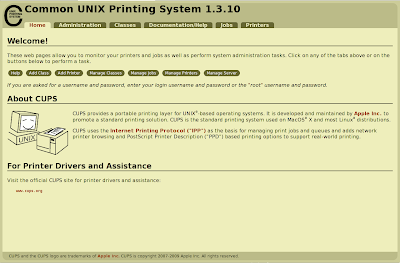
Common UNIX Printing System (CUPS) is the default printing subsystem in Slackware. Latest stable Slackware release (12.2) includes Gutenprint package which is a suit of printer drivers and may be used with CUPS.

To install a printer using CUPS under Slackware:

1. Start CUPS service by

# chmod +x /etc/rc.d/rc.cups

# /etc/rc.d/rc.cups start

or using pkgtool add CUPS to startup services to run.

# pkgtool


(Setup > Services > CUPS Print Server).


2. Connect your printer to computer and reboot system.

3. Connect to CUPS Panel by browsing http://localhost:631/

4. Click on "Add Printer".

5. Describe your printer, choose class and model.

6. Entering root user name "root" and password, finalize printer installation.

For detailed information look at Documentation/Help.